Claude Basics
Learn how to program with AI using Claude Code.
What is Claude Code?
Claude Code is a VS Code extension that lets you program while chatting with Claude (AI).
Two Interfaces
Claude Code can be used in two ways:
| Interface | Description | Features |
|---|---|---|
| Chat UI (VS Code extension) | Chat in VS Code sidebar | Beginner-friendly, intuitive |
| Terminal | Command line interaction | For advanced users, faster |
This workshop primarily uses the Chat UI.
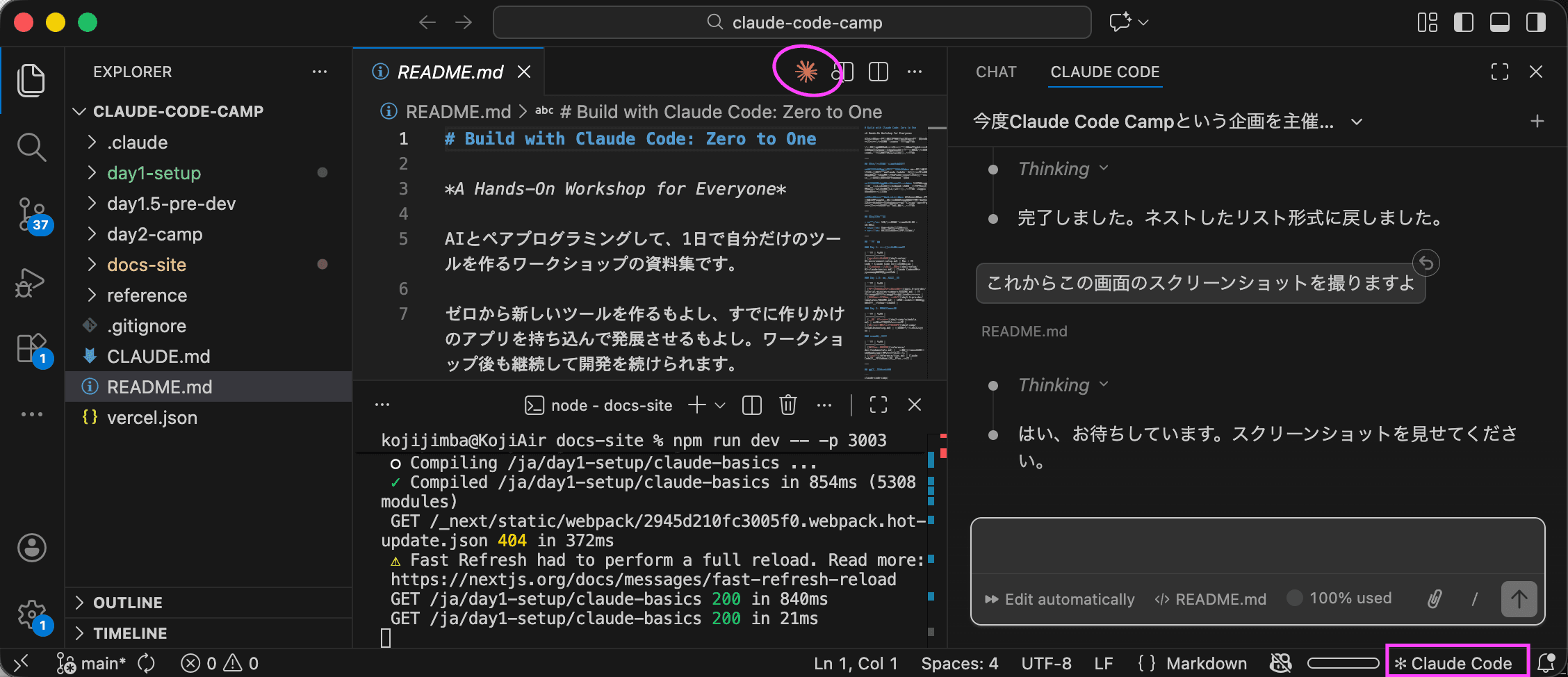
- Center Claude icon: Opens the terminal
- Bottom-right icon: Opens the Claude Code chat UI
How to launch in Terminal (for reference):
claudeType claude in Terminal to start Claude Code.
Note: Slash commands like /compact and /clear are only available in Terminal. In the Chat UI, use the ”+” button to start a new chat.
What you do
- Tell Claude what you want to build in natural language
- Review what’s been created
- Request modifications or additions
What Claude does
- Write code
- Create and edit files
- Fix errors
- Explain things you don’t understand
Basic Flow
1. Open Claude Code
- Open a project folder in VS Code
- Click the Claude icon in the left sidebar
- The chat panel appears
2. Tell Claude What You Want to Build
Type in the chat field and press Enter:
Create a program that displays today's date3. Claude Works
Claude writes code and creates files. You can see what it’s doing on screen.
4. Review and Request Changes if Needed
Also display the time
Change the format to YYYY-MM-DD
Approval (Permission) Decisions
When Claude creates/edits files or runs commands, it asks for your permission.
Operations Requiring Permission
- Creating/editing files
- Running commands (like executing programs)
- Deleting files
Decision Points
| Display | Decision |
|---|---|
| File name/content to create looks reasonable | Allow |
| Command to run is understandable | Allow |
| Not sure | Deny first and ask questions |
When in Doubt
What does this command do?Just ask before deciding. Even if you make a mistake, you can fix it later.
Bulk Approval Options
If approving the same type of operation repeatedly gets tedious, options like “Allow for this session” let you auto-approve during the session.
Usage Limits
Claude Code has usage limits. When you hit the limit, it becomes temporarily unavailable.
Types of Limits
| Limit | Description | Reset |
|---|---|---|
| 5-hour session | Usage from when you start | Resets after 5 hours |
| Weekly Quota | Weekly usage limit | 7-day rolling window |
When Approaching Limits
- A warning appears on screen
- When the limit is reached, you need to wait until the specified reset time (displayed as “Resets today at ○○”)
- Switching to Max Plan: Contact a mentor (company will cover the cost)
Tips to Save Usage
- Don’t continue unnecessarily long conversations
- Start new topics with a new chat (”+” button)
- Try small iterations rather than aiming for perfection at once
When Conversations Get Long
As conversations with Claude get longer, it may slow down or forget earlier content. This is separate from the Quota (usage limit) issue.
How to Handle
In Chat UI (VS Code):
- Click the ”+” button to start a new chat
In Terminal:
- Use the
/compactcommand to compress conversation history
When to Start a New Chat
- When conversations get long
- When you feel “Did it forget what I said earlier?”
- When starting new work
Tips for Effective Prompting
Good Examples
"Create a tool that reads a CSV file and calculates total sales"
"Create a webpage that shows a message when a button is clicked"
"Fix this error"
"Explain what this code does"
Better Examples (Be Specific)
"Create a Python script that reads a CSV file (column 1 is date, column 2 is product name,
column 3 is amount) and calculates the total of the amounts"
"Create a webpage with an input field and button. When clicked, it displays
'Hello, [name]!' using HTML and JavaScript."Key Points
- Clearly state what you want to build
- Be specific about input/output
- Mention technology preferences if you have them (Python, JavaScript, etc.)
If you’re not sure, just describe it roughly. Claude will ask clarifying questions.
Useful Features
@Mention to Reference Files
When asking about a specific file, use @ to specify it.
@index.html look at this and change the button color to blue@data.csv analyze this and tell me the sales trendsHow to use:
- Type
@in the chat field - File name suggestions appear
- Select and continue your message
Claude reads the file contents and responds appropriately.
Show Images
You can show screenshots or design images to Claude.
How to use:
- Drag and drop images into the chat field
- Or paste (
Cmd + V)
Use cases:
[Paste screenshot]
Explain what this error screen means
[Paste design image]
Create an HTML layout like this screen[Paste hand-drawn sketch]
Implement this UISelect Code and Ask Questions
You can select code in VS Code and ask Claude directly about it.
How to use:
- Select code in the VS Code editor (drag)
- Right-click → “Claude: Add to Chat”
- Selected code is added to chat
- Enter your question
Use cases:
[Add selected code]
Explain what this part does
[Add selected code]
There seems to be a bug here. Check itUnderstanding the Entire Project
When starting work on a new project, it’s effective to let Claude understand the big picture first.
Explain this project's structureTell me the tech stack used in this projectList the main files and their rolesClaude reads the folder structure and files to understand the project.
Tips for Effective Progress
Start Small, Add Gradually
Don’t try to build something perfect at once. Start with the minimum.
Good approach:
1. First create a page that just displays "Hello World"
2. Then add an input form
3. Then make it display a greeting when the button is clicked
4. Then improve the design
Approach to avoid:
Create a page with an input form and button, that displays a greeting when clicked,
with nice design, validation, error handling, and responsive design...
Telling Claude everything at once makes it more likely to get confused.
Reset When Things Aren’t Working
When conversations get long or Claude seems confused, starting over is effective.
Signs you need to reset:
- Same error can’t be fixed despite multiple attempts
- It forgot what you said earlier
- Suggestions keep getting more complex
How to reset:
- Click the ”+” button to start a new chat (in Terminal:
/clear) - Simply explain what you want to do again
- Restart from minimum functionality
It might seem like a detour, but it’s often faster in the end.
Common Operations
Start a New Chat
Click the ”+” button at the top of the chat panel. Use this when starting a new topic.
Undo Last Change
When you want to revert Claude’s changes:
Undo the last changeOr use the “Undo” button next to Claude’s response.
Terminal Commands (Reference)
When using Claude Code in Terminal, these slash commands are available:
| Command | Description |
|---|---|
/clear | Clear the chat |
/compact | Compress context (when conversations get long) |
/help | Show command list |
Note: These commands are not available in the Chat UI.
Advanced Claude Techniques
Once you’re comfortable with basics, try advanced features like CLAUDE.md, MCP servers, and sub-agents. See Advanced Claude Techniques for details.
When You’re Stuck
When You Get an Error
Show the error message directly to Claude:
I got this error. Fix itClaude reads the error message, explains the cause, and fixes it.
When You Don’t Know What to Ask
I want to do X, how should I do it?
What is X?
What should I do next in this project?
Don’t hesitate to ask. Claude is good at explanations.
When You Don’t Understand Claude’s Suggestion
Explain in more detail
Explain for a beginner
Why do it that way?
Practice: First Steps
Once environment setup is done, try the following.
Exercise 1: Simple Calculation
Open the my-first-app folder in VS Code and in the Claude panel:
Create a Python program that calculates the sum of 1 to 100, and run it→ Claude creates and runs the file. Allow when asked for permission.
Exercise 2: File Operations
Create a file called fruits.txt and write apple, banana, orange on separate linesThen:
Create a program that reads fruits.txt and displays everything in uppercaseExercise 3: Web Page
Create a simple self-introduction page in HTML. Display name and hobbiesThen:
Open the HTML file I created in the browserNext Steps
Once you’re comfortable with basic operations, try the Meeting Summary Tool Tutorial.
You’ll build a tool you can actually use at work, together with Claude.